Guide
Blur License Plates in Tesla Dashcam Video Exports
TesClip can automatically detect and pixelate license plates across every selected Tesla camera while exporting a video, entirely on your device.
Can I export videos with the HUD overlay?
Yes. Set In/Out points, choose a single-camera or multi-camera layout, then export a downloadable MP4 from 720p to 4K with an optional telemetry HUD and dynamic GPS map. TesClip uses fast hardware-accelerated local export when the browser supports it and an automatic local fallback otherwise. Export time depends on the device, clip length, resolution, codec, and layout.
Blur license plates
Plate detection runs locally in the browser. The original files remain unchanged and no image or plate number is uploaded or read with OCR.
Hide the rear camera plate: Pixelates the bottom of the rear camera where your vehicle plate is visible.
- 1Open the export settings and enable license plate anonymization.
- 2Choose Enhanced, Reliable, or Maximum detection reliability.
- 3Export the clip and review the result before sharing it.
Automatic detection can miss a plate. Higher reliability performs more detections and slows video export, especially with several cameras.
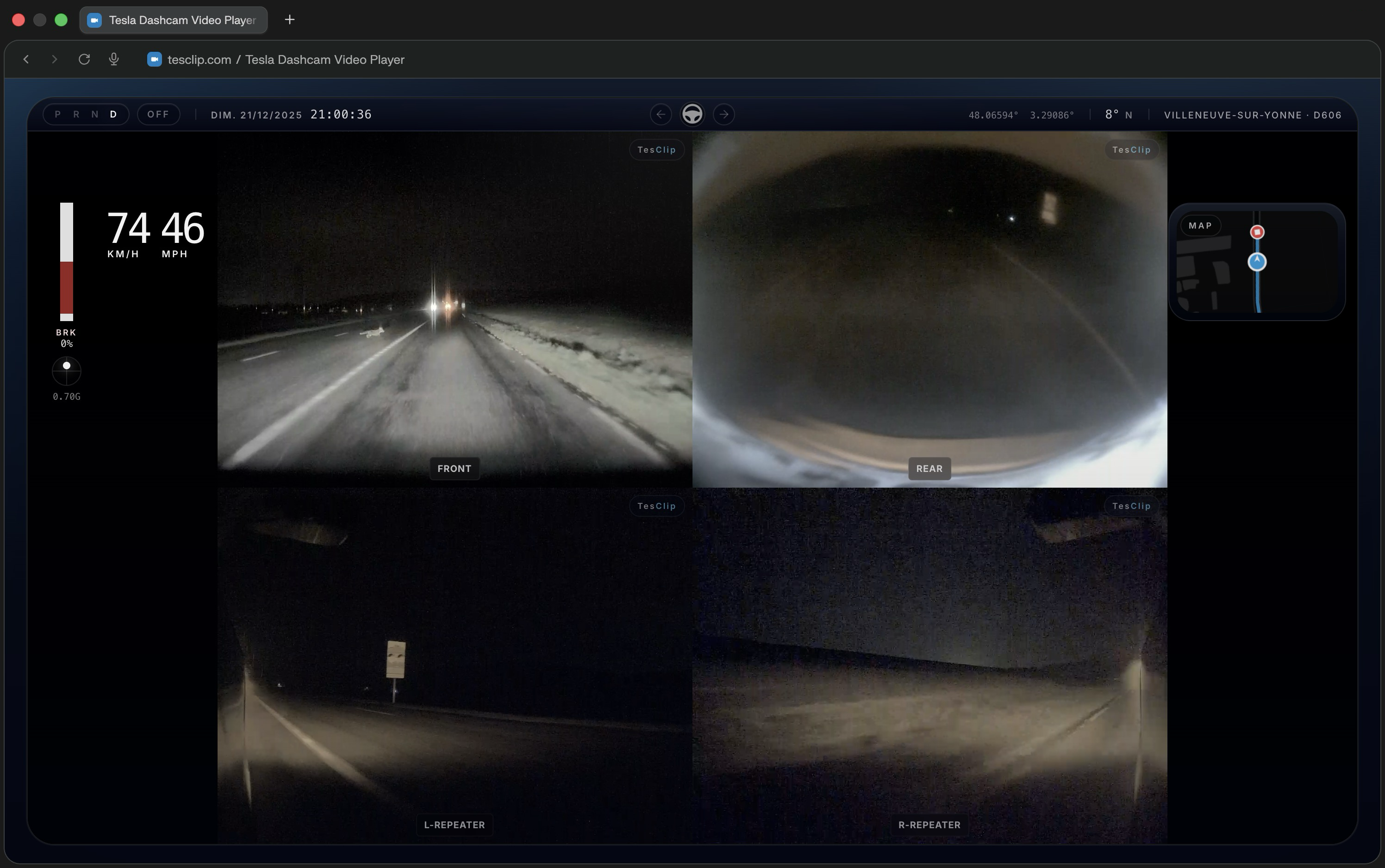
What you can do
Prepare clips for review or sharing
Trim and export footage with the HUD overlay when you need to keep evidence, send a replay, or create a clearer explanation of an event.
How it works
- 1
Select your TeslaCam folder
Plug in your Tesla USB drive and choose the TeslaCam folder in TesClip. Supported browsers can remember that folder for faster access later.
- 2
Play, inspect, and export
Open a clip to review synchronized cameras, telemetry, and maps, then trim and export the sequence if you need a shareable version.
Privacy first
Local processing only
TesClip processes footage locally and does not upload videos to its servers. Only an export you explicitly publish to YouTube is sent directly from your browser to Google and YouTube.
Useful context without cloud delay
Because the analysis happens locally, you can inspect footage quickly while keeping full control over the original files.
Known limitations
- Very large clips or long export sessions can depend heavily on available device memory and browser performance.
Ready to try TesClip?
Open your TeslaCam folder to browse clips right away, or get in touch if you need help, want to report a bug, or have an idea for improving the viewer.
Open TeslaCam FolderNeed the full overview?
Export Tesla Dashcam Videos — HUD, Multi-Camera & 4K
Yes. Set In/Out points, choose a single-camera or multi-camera layout, then export a downloadable MP4 from 720p to 4K with an optional telemetry HUD and dynamic GPS map. TesClip uses fast hardware-accelerated local export when the browser supports it and an automatic local fallback otherwise. Export time depends on the device, clip length, resolution, codec, and layout.
GuideTesla Sentry Mode Viewer — Watch Sentry Clips Online
See all relevant cameras and quickly find the moment that triggered the recording.
GuideTesla Accident: How to Recover and Save Dashcam Video
After a Tesla accident, collision, impact or minor scrape, act quickly to preserve the original TeslaCam footage, find the right camera files and prepare a clear copy for your insurer.
Guide