Guide
Tesla Accident: How to Recover and Save Dashcam Video
After a Tesla accident, collision, impact or minor scrape, act quickly to preserve the original TeslaCam footage, find the right camera files and prepare a clear copy for your insurer.
Safety first, footage second
Stop safely, assist anyone in danger and contact emergency services when needed. Only handle the touchscreen or USB drive once the vehicle is secure and you can do so without creating another risk.
Recover the Tesla video after an accident
- 1
Save the event if it is still possible
Once safe, use the Dashcam save control. Tesla can save some safety-critical events automatically, but detection varies: never assume every collision was saved.
- 2
Park and pause before removing the drive
Wait until the car is in Park and Dashcam is no longer busy. Pause recording before removing the USB drive so a write in progress is not interrupted.
- 3
Copy the complete TeslaCam folder
On a computer, copy the entire TeslaCam folder to a dated folder before viewing, renaming or exporting anything. Keep this first copy unchanged.
- 4
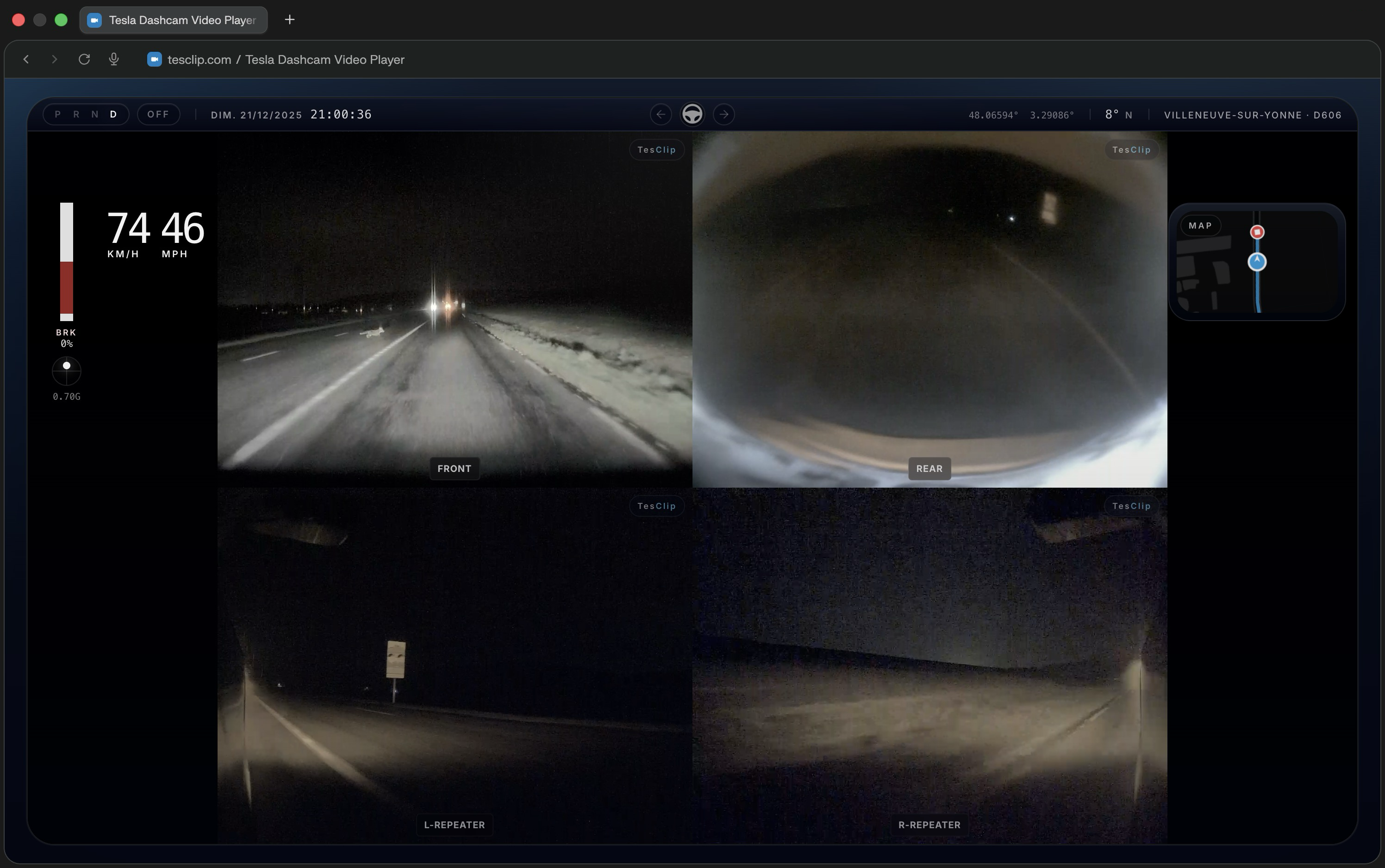
Export each useful camera with TesClip
Select the copied folder in TesClip and locate the impact. Export the same useful interval once per viewpoint: for example, one left-camera file and then one rear-camera file. A single camera per video is usually easier for an insurer to review.
Where can the accident clip be found?
Check SavedClips first, then RecentClips if the event was not saved, and SentryClips for an impact while parked. Act quickly: recent footage is recorded in a loop and may be overwritten. Availability and camera count depend on vehicle, region and software version.
Preserve a clean evidence package
- Keep the original MP4 files and their folder names unchanged.
- Start each export about 10 seconds before the impact and continue at least 5 seconds after; include more context whenever it helps explain the scene.
- Show useful recorded context such as date, time, speed, telemetry or map when relevant, without obscuring the image.
- Name each file by viewpoint and share every useful angle, while retaining the complete original sequence.
For insurance, a report or the police
Ask the insurer which format, duration and transfer method it accepts. In TesClip, prefer one camera per exported file and repeat the export for every useful viewpoint. Studio can assemble a chronological sequence, but keep only one camera visible at a time. Avoid cuts that remove context or change the meaning of the scene.
Recommended TesClip export for your insurer
Ask the insurer what it accepts. In TesClip, export the same interval separately for every useful viewpoint: one file for the left camera, another for the rear camera, and so on. Prefer one visible camera per video. Studio can assemble a chronological sequence, but keep only one camera on screen at a time. Start about 10 seconds before the impact and continue at least 5 seconds after; include more context when useful. Show relevant recorded date, time, speed, telemetry or map information without obscuring the scene.
Encrypted clips and future recordings
Existing encrypted clips remain readable only through Tesla: in the recording vehicle, in the Tesla app when available, or at dashcam.tesla.com with an account linked to the vehicle. To make future recordings directly readable by TesClip, turn off Controls > Safety > Encrypt Dashcam Recordings beforehand. This does not decrypt existing files and reduces Tesla’s optional protection.
Questions after a Tesla collision
Does Tesla automatically save video after every accident?
No. Auto mode may save a safety-critical event such as a collision or airbag deployment, but Tesla says detection varies. Check SavedClips and RecentClips as soon as it is safe.
Can an overwritten Tesla video be recovered with TesClip?
No. TesClip can organize and play files still present on the drive; it cannot recreate footage that the vehicle has already overwritten or deleted.
Should I combine every camera into one insurance video?
Usually, export one file per useful camera using the same time range. If you use Studio for a chronological montage, show only one camera at a time. Keep the complete untouched originals and follow the insurer’s requirements.
Ready to try TesClip?
Open your TeslaCam folder to browse clips right away, or get in touch if you need help, want to report a bug, or have an idea for improving the viewer.
Open TeslaCam FolderNeed the full overview?
TeslaCam Folder Viewer — Sentry, Saved & Recent Clips
Scan TeslaCam folders and regroup Sentry, Saved, and Recent clips into a browser that is easier to review.
GuideExport Tesla Dashcam Videos — HUD, Multi-Camera & 4K
Yes. Set In/Out points, choose a single-camera or multi-camera layout, then export a downloadable MP4 from 720p to 4K with an optional telemetry HUD and dynamic GPS map. TesClip uses fast hardware-accelerated local export when the browser supports it and an automatic local fallback otherwise. Export time depends on the device, clip length, resolution, codec, and layout.
GuideTesla Sentry Mode Viewer — Watch Sentry Clips Online
See all relevant cameras and quickly find the moment that triggered the recording.
Guide