Guide
Export Tesla Dashcam Videos — HUD, Multi-Camera & 4K
Yes. Set In/Out points, choose a single-camera or multi-camera layout, then export a downloadable MP4 from 720p to 4K with an optional telemetry HUD and dynamic GPS map. TesClip uses fast hardware-accelerated local export when the browser supports it and an automatic local fallback otherwise. Export time depends on the device, clip length, resolution, codec, and layout.
Can I export videos with the HUD overlay?
Yes. Set In/Out points, choose a single-camera or multi-camera layout, then export a downloadable MP4 from 720p to 4K with an optional telemetry HUD and dynamic GPS map. TesClip uses fast hardware-accelerated local export when the browser supports it and an automatic local fallback otherwise. Export time depends on the device, clip length, resolution, codec, and layout.
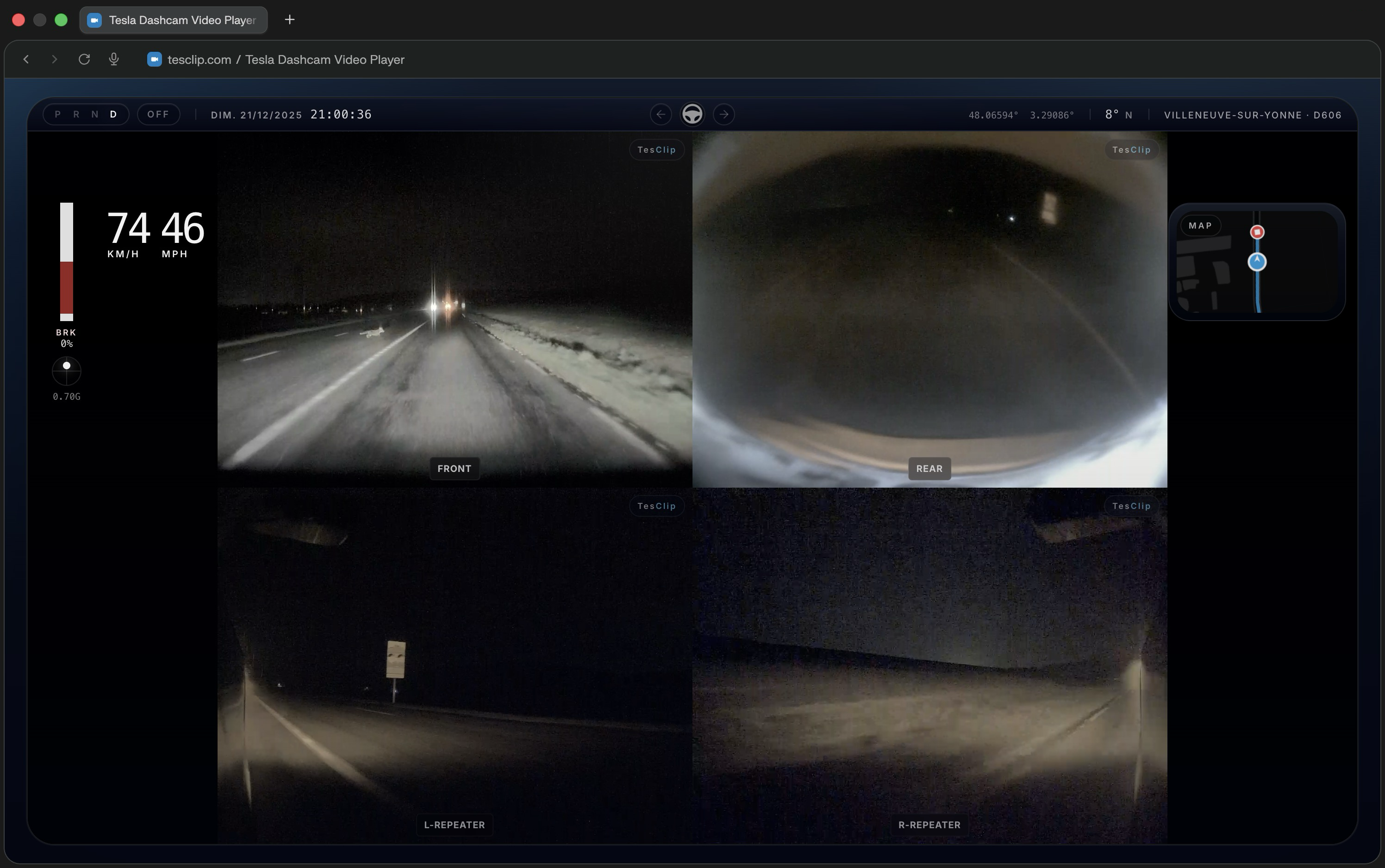
What you can do
Review every relevant camera together
Watch front, rear, repeater, and pillar cameras in synchronized layouts so you can understand what happened around the car at a glance.
See driving data while the clip plays
Overlay speed, acceleration, steering, braking, Autopilot status, and other telemetry extracted directly from supported Tesla footage.
Prepare clips for review or sharing
Trim and export footage with the HUD overlay when you need to keep evidence, send a replay, or create a clearer explanation of an event.
How it works
- 1
Select your TeslaCam folder
Plug in your Tesla USB drive and choose the TeslaCam folder in TesClip. Supported browsers can remember that folder for faster access later.
- 2
Play, inspect, and export
Open a clip to review synchronized cameras, telemetry, and maps, then trim and export the sequence if you need a shareable version.
Privacy first
Local processing only
TesClip processes footage locally and does not upload videos to its servers. Only an export you explicitly publish to YouTube is sent directly from your browser to Google and YouTube.
Useful context without cloud delay
Because the analysis happens locally, you can inspect footage quickly while keeping full control over the original files.
Known limitations
- Perfect frame-level sync between every camera can vary slightly because browsers do not decode multiple videos with identical timing guarantees.
- Very large clips or long export sessions can depend heavily on available device memory and browser performance.
Ready to try TesClip?
Open your TeslaCam folder to browse clips right away, or get in touch if you need help, want to report a bug, or have an idea for improving the viewer.
Open TeslaCam FolderNeed the full overview?
Blur License Plates in Tesla Dashcam Video Exports
TesClip can automatically detect and pixelate license plates across every selected Tesla camera while exporting a video, entirely on your device.
GuideTesla Dashcam Telemetry Viewer — Speed, GPS & Autopilot
Yes! TesClip extracts embedded telemetry data from your Tesla videos to display real-time speed, acceleration, GPS coordinates, autopilot status (FSD, Autosteer, TACC), steering angle, brake status, and more. You can also view your route on an interactive map with multiple view modes.
GuideTesla Accident: How to Recover and Save Dashcam Video
After a Tesla accident, collision, impact or minor scrape, act quickly to preserve the original TeslaCam footage, find the right camera files and prepare a clear copy for your insurer.
Guide